Please read the entire document before beginning.
A client recently requested to move from an on-prem Windows Server to Azure AD in the cloud. The client is currently utilizing Microsoft 365 (M365) for email, Teams, etc., so they won’t be starting from scratch. Obviously, the first recommended step was to install Azure AD Connect and create a Hybrid Joined environment. That step has been completed, and you can read about how to set that up here. The on-prem server will eventually be removed, and users will create a new local profile once the computer has been unjoined from the domain and then Entra ID joined. The user profile files will still need to follow the user, so if you choose not to reset all your computers to factory default and export/import your old profile, we have also completed the phase about Undoing Folder Redirection.
This blog details the necessary steps of unjoining the computer from the on-prem domain and joining it to your Entra ID. Before we jump in, you will need at least one user with a license that includes Intune and we need to make a couple adjustments to your Microsoft 365 tenant. By default, Windows Hello for Business (WHfB) has a Not Configured state, so it forces end users to create a PIN when they first sign in after joining Entra ID. If your server files have already been migrated, you don’t have to complete this step. Because we want to continue using the on-prem server for file storage through mapped drives, using Windows Hello does not have the same authentication to the server files, thereby making them inaccessible. The solution is to either turn WHfB off on your tenant or enabling Azure AD Kerberos (Cloud Kerberos Trust), which is not covered here. We have chosen to turn off WHfB and will likely configure it after all the on-prem server files have been migrated.
There are two locations in Intune that need changing. 1) Intune -> Devices -> Enrollment -> Windows Hello for Business -> set Configure Windows Hello for Business to Disabled -> Save.
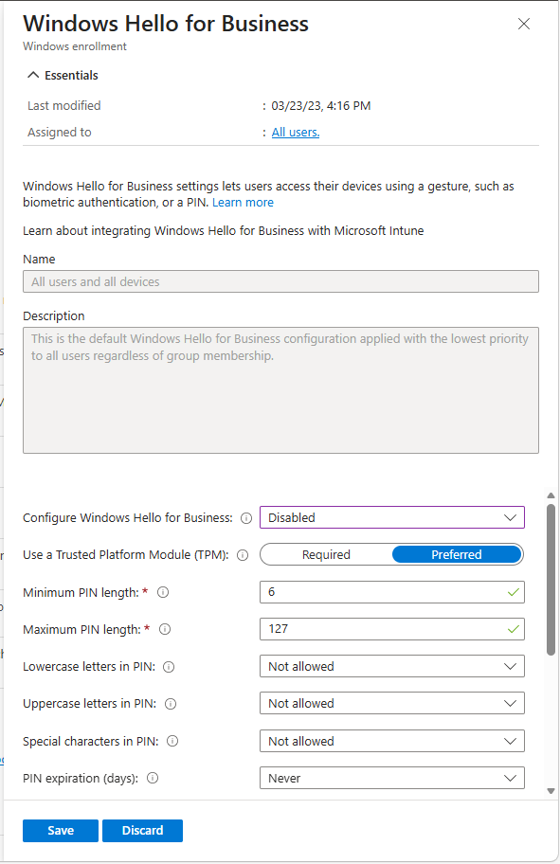
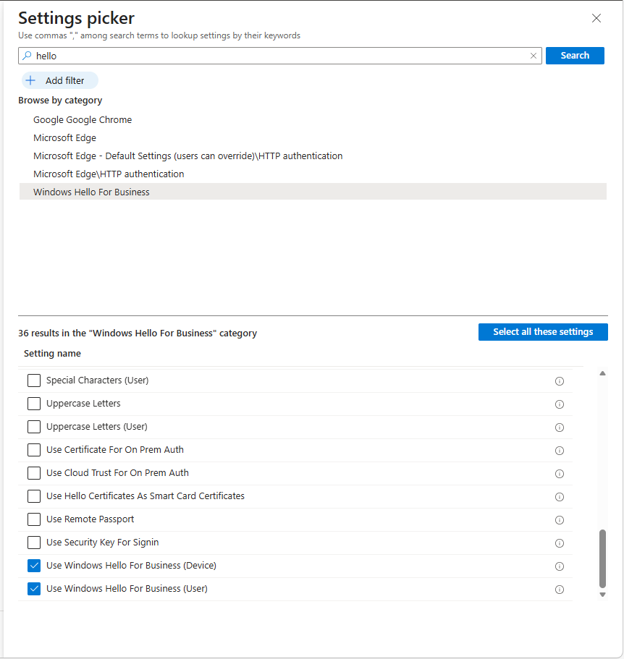
2) Intune -> Devices -> Configuration -> Create new Settings Policy for Windows 10 and later computers. Change Use Windows Hello for Business (Devices) and Use Windows Hello for Business (Users) to false. In the Included groups, you can either create an Entra security group for testing a few users or add All Users.
The following steps will need to be completed for each end user and each domain computer they are using. Remember, joining the computer to Entra ID will cause the user to have a new, clean user profile, so follow my steps here to Undo Folder Redirection or make sure you’ve copied any user profile documents somewhere so they can be copied into the new profile:
- Sign into Windows with any account. Verify the local administrator account is enabled, and you know the password. Unjoin the computer from the domain by joining WORKGROUP (Windows key + R, then sysdm.cpl). Reboot.
- Sign in with the local administrator account.
- Join to Entra ID with a M365 administrator account (Settings -> Accounts -> Access work or school -> Connect). Click ‘Join this device to Microsoft Entra ID’ and follow the prompts, then sign out of Windows.
- Sign in with the end user’s email address. This creates the new user profile.
- Sign into http://www.office.com in any browser as the end user and Sync OneDrive.
- Turn on KFM (Right-click cloud in taskbar -> Settings -> Manage Backup).
- (Optional) Move Music and Videos folders to OneDrive) Go to %USERPROFILE% in File Explorer, right-click each folder (Music, Videos) one at a time -> Properties -> Location -> Move -> select corresponding folder in OneDrive).
- Pin common apps to Taskbar.
- Remap mapped drives with custom .bat file or map manually. net use G: \\sever\foldername
- Add network printers. You may need to know the IP addresses and if they were previously added, it will use the current drivers.
- Delete the computer from the on-prem Active Directory.
- (Optional) Delete the Entra Hybrid Joined computer from the Entra Admin Center.
NOTES:
- If you discover that you need documents in the on-prem domain profile after you’ve completed this process, you’ll have to Disconnect from Entra ID and re-join the domain. Once you have what you need, you’ll have to unjoin from the domain and re-join the computer to Entra ID. Unjoining a computer does not remove the local profile.
- For Microsoft Edge Favorites and Google Chrome Bookmarks to migrate to the new profile, make sure you are signed into each app with your work email, or you’ll have to export/import them. Edge will automatically sign you in if you’ve accessed one of the M365 office apps already.
- If you are using Windows Server Update Services (WSUS), follow these steps before unjoining the computer from the domain and then the computer will use M365 Windows Update for Business if it’s configured.
- If you already have SharePoint sites, you can create links to it in OneDrive.
- Unjoining a computer from the on-prem AD will disable it in the OU. To avoid sync errors, delete the disabled computer in the OU or move it to a non-syncing OU.

 notacomputergeek
Leave a comment