Have you ever connected a USB drive, and nothing happened? Usually, Windows will make a noise and either run File Explorer or present a dialog box prompting you to ‘Choose what to do with removable drives’. You unplug/replug a few times, change ports, change cords – nothing works.
Here’s a suggestion that may work. With the drive still plugged in, type cmd in Windows search and click the Command Prompt app.
Type ‘diskpart’ at the command line – you may need admin credentials. A Microsoft description of diskpart can be found here.
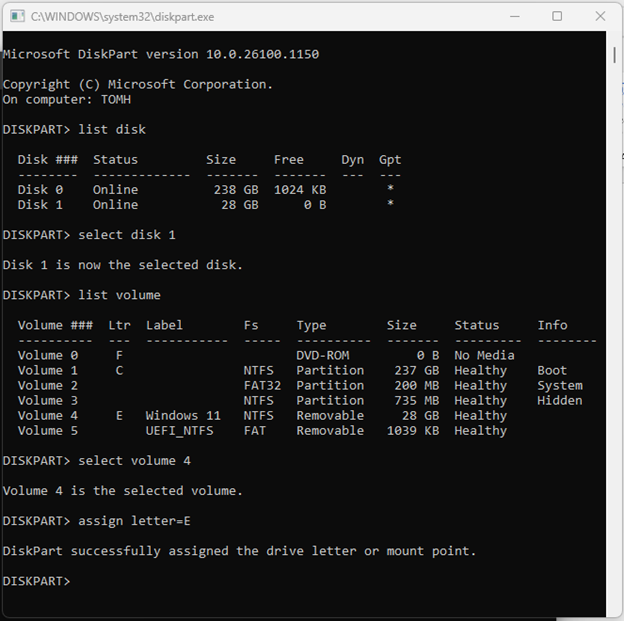
Type ‘list disk’ to see the current disks online.
Type ‘select disk 1’ to put focus on that disk.
Type ‘list volume’ to list the current volumes.
Type ‘select volume 4’ to put focus on the selected disk’s volume.
Type ‘assign letter=E’ to assign a drive letter to the volume. In my example below, the drive is already labeled E, but if the disk is not recognized in File Explorer, the Ltr column will be blank.
You should now see the attached drive listed in File Explorer and be able to access it.

 notacomputergeek
Leave a comment