A client recently requested to move from an on-prem Windows Server to Azure AD in the cloud. The client is currently utilizing Microsoft 365 for email, Teams, etc., so they won’t be starting from scratch. Obviously, the first recommended step is to install Azure AD Connect and create a Hybrid Joined environment. That step has been done, and you can read about how to set that up here. Since the on-prem server will eventually be removed and users will create a new local profile once the computer has been unjoined from the domain and then Entra ID joined, user profile files will still need to follow the user.
This blog details one of the next steps of undoing folder redirection. Folder Redirection in an on-prem environment is a very common practice and allows parts of a user’s profile to follow them from computer to computer – folders such as Desktop, Documents, Pictures, etc. The folders are typically redirected to a server share. I’ve read many online resources regarding Folder Redirection migration and there appear to be many ways to accomplish this, so this is just one method.
Before we begin, the end user had a few requests and that helps drive the solution: 1) after the migration, everyone will use OneDrive for Business and sync it to their computer, 2) everyone will turn on KFM (Known Folder Move), and 3) prefer the migration be done in phases or a few users at once so end users are less impacted and any problems encountered can be easily reversed.
As a test, we synced OneDrive for Business for one user and tried to turn on KFM. Here is the first error – “The Documents folder contains other important folders and isn’t supported for file backup”.
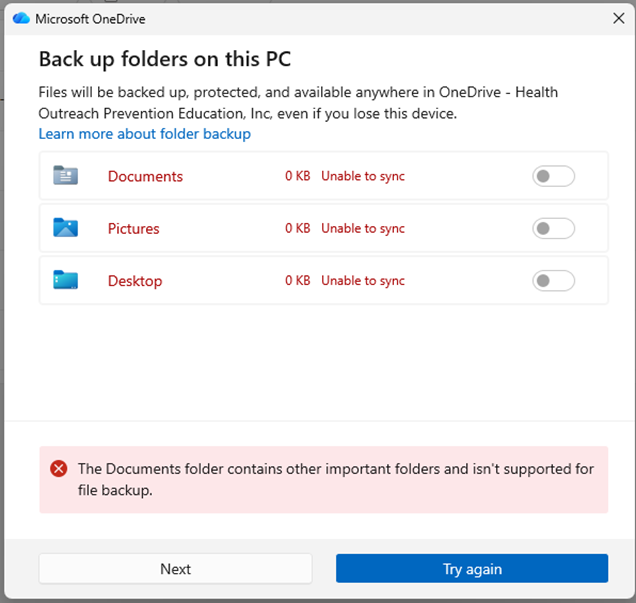
This error is caused because the on-prem Group Policy Object (GPO) for Folder Redirection set the Music, Pictures, and Videos folders to “Follow the Documents Folder”.
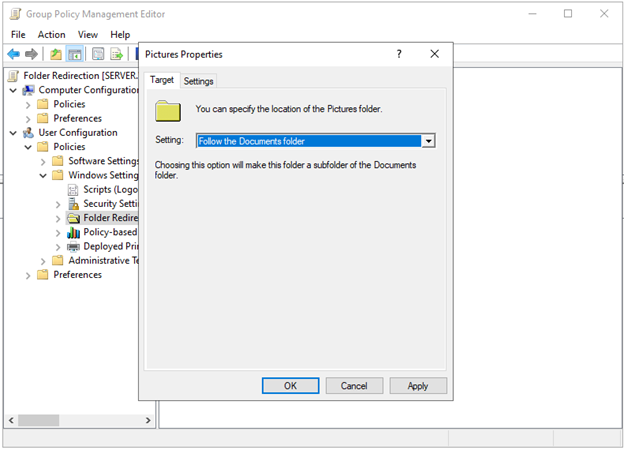
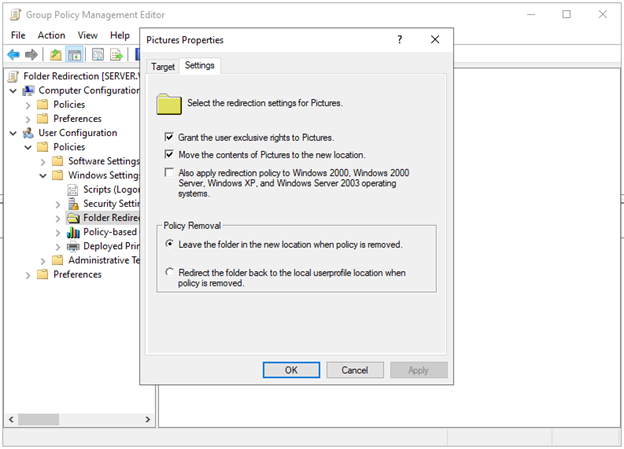
To Fix this error, the current Folder Redirection GPO for any folder with this setting, should be changed to “Basic – Redirect everyone’s folder to the same location” and under the Settings tab, check the box to “Move the contents of <folder name> to the new location”.

Once these changes are made, open a command prompt on the on-prem server and run the command gpupdate /force. For end users to get the update, they will need to sign out, then sign back in or reboot their computer. Since GPOs sometimes don’t get applied right away, it is also recommended to do a gpupdate /force on the user’s computer. You can also verify on the end user’s computer that these folders no longer reside under the Documents folder.
Now that we fixed that error, let’s try the KFM again. Here is the next error – “Your IT administrator has set a policy that prevents changes to known folders. Contact your administrator to resolve this issue. (Capabilities: 0x101)”.
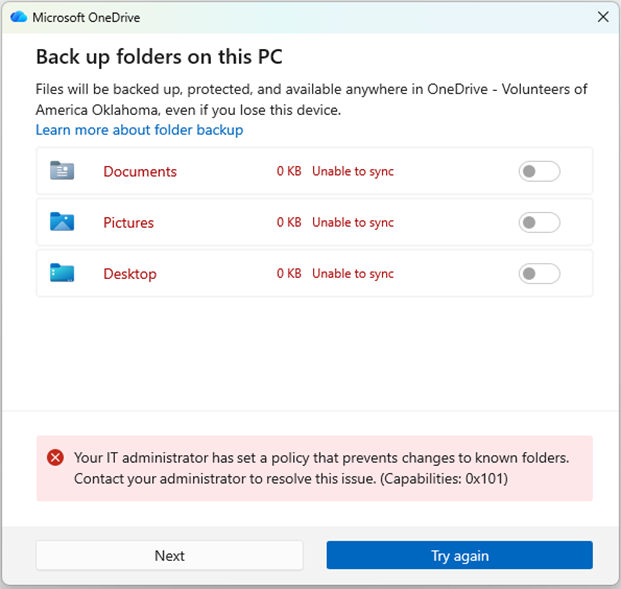
To fix this error, it will take a bit more planning. Make sure all folders in the Folder Redirection GPO that don’t say ‘Not configured’ are set to “Basic – Redirect everyone’s folder to the same location”. If you make any changes, run gpupdate /force on the server and make sure all computers affected by this policy have been rebooted or users have at least signed out/in.
For our test, the single user account is used and once it’s been verified to work, we can turn it on for everyone or others. Because the process requires multiple GPO changes and multiple user reboots, you may have to give sufficient time between GPO changes for settings to apply or visit each computer and apply the changes manually.
We will need to create a new GPO later, but let’s configure the existing Folder Redirection GPO to Deny this user’s access to the policy, so the two policies don’t conflict. Click the Folder Redirection policy, click the Delegation tab, click the Advanced button in the lower right, click Add, enter the name of the test user and click OK. With the user highlighted, uncheck ‘Read’ in the Allow column and check ‘Apply group policy’ in the Deny column, then click OK.

Create a new GPO called ‘Undo Folder Redirection’ under the same OU and apply the following settings to all folders that don’t say ‘Not configured’. In our case, it is these seven folders: Desktop, Start Menu, Documents, Pictures, Music, Videos, and Favorites. The new policy redirects everything back to the local profile even when the policy is deleted.
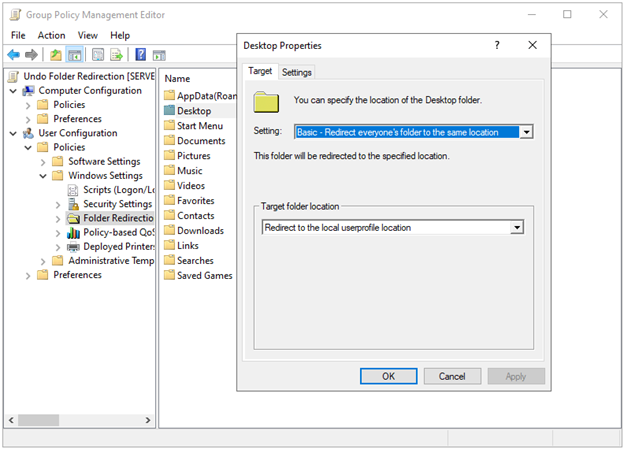
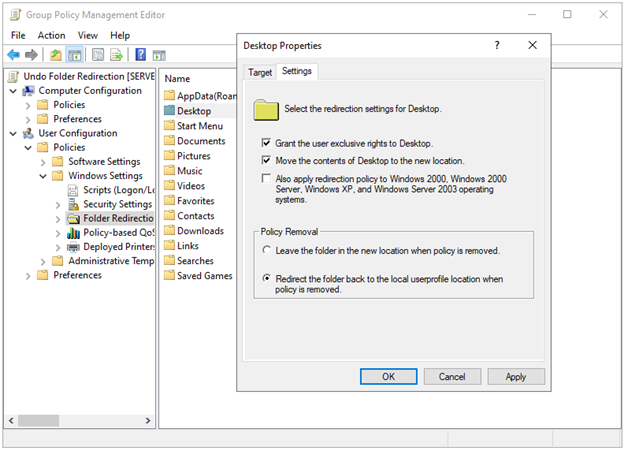
Add the test user to the Scope tab of the new policy. One last thing – we don’t want the possibility of all Authenticated Users getting this new policy, so click the Delegation tab, click the Advanced button, highlight Authenticated Users, uncheck ‘Apply group policy’ under the Allow column and click OK. Now, link the Undo Folder Redirection policy to the same OU as the Folder Redirection policy and run gpupdate /force on the server.
Run gpupdate /force on the test user’s computer, reboot the computer, sign in as that user, and verify the folders have been moved to the user’s local profile (%USERPROFILE%). To verify the policy was applied, run a command prompt and the command gpresult /R. At this point, the user’s registry values at [HKEY_CURRENT_USER\Software\Microsoft\Windows\CurrentVersion\Explorer\Shell Folders] and [HKEY_CURRENT_USER\Software\Microsoft\Windows\CurrentVersion\Explorer\User Shell Folders] have also been successfully updated and all seven folders are now in the local profile.
Go back to the Undo Folder Redirection GPO and remove the test user from the Scope tab. Perform gpupdate /force on the server and reboot the test computer. This step is the one that will change the end user’s registry so that KFM can be done.
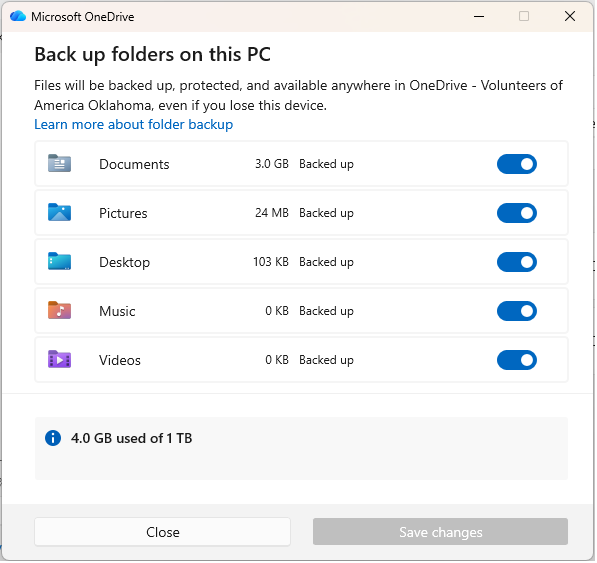
Confirm the user has synced OneDrive, rename any OneDrive folders named Desktop, Documents, or Pictures to avoid a naming conflict and try to turn on KFM again. You can now change all three settings to ON and click Save changes.
If you get this far and you’re still getting the “Capabilities:0x101” error as above and checked the “…Shell Folders” registry keys to make sure all settings don’t point to your server, create these two registry keys on the computer, then reboot: HKEY_CURRENT_USER\Software\Microsoft\Windows\CurrentVersion\Policies\Explorer – create DWORD DisablePersonalDirChange and set to zero. HKEY_LOCAL_MACHINE\SOFTWARE\Policies\Microsoft\OneDrive – create DWORD KFMBlockOptIn and set to zero.
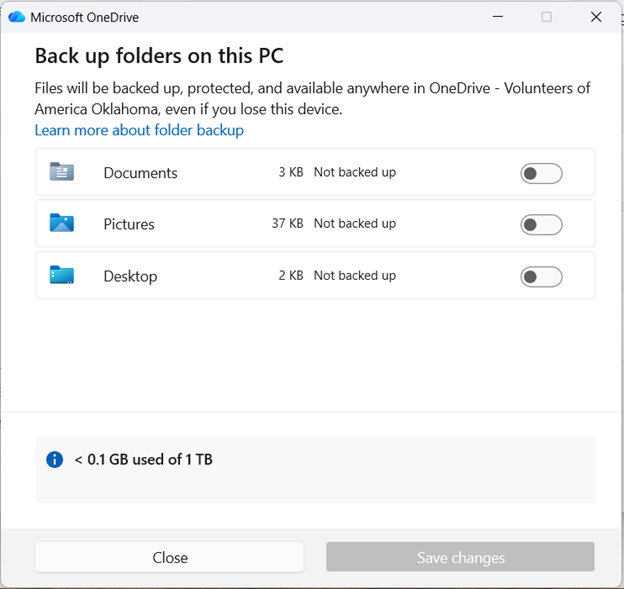
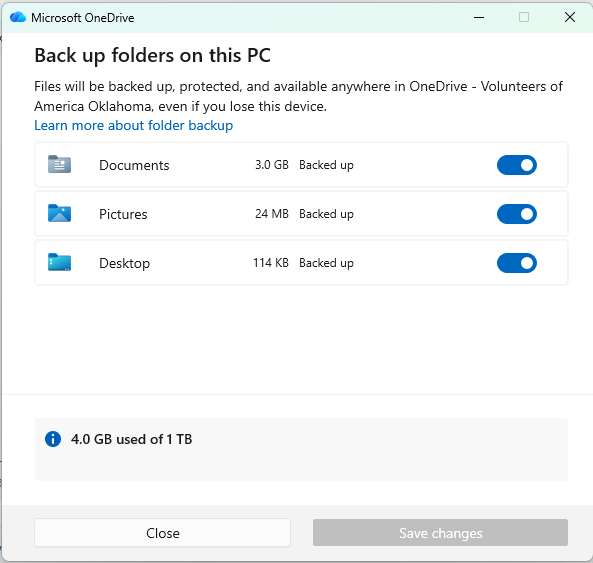
You should see this dialog, and you can verify the folders have moved from the user’s local profile to their OneDrive.
As for the Favorites folder, those are found in Microsoft Edge and the user must make sure they are signed into Edge and syncing is turned on for whatever computer they are using. In Edge, go to Settings -> Profile-> Sync or edge://settings/profiles/sync.
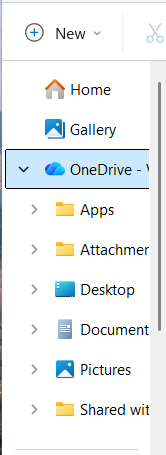
Music and Videos folders – create two folders under the user’s OneDrive\Documents – ‘Music’ and ‘Videos’, run File Explorer, go to %USERPROFILE%, right-click each folder one at a time, click Properties, click the Location tab, click Move and select the appropriate folder you just created, then click Yes to move the folder location. Once this is done, you will also see these folders in Manage Backup.
Start Menu – we aren’t going to migrate these settings, since they can be easily re-done by the user (Startup Apps in System Settings).
This Folder Redirection method can be used while computers are still on-prem domain-joined and users are still accessing on-prem file shares. You can now choose to do all users at once by applying the GPO to all Authenticated Users or by adding individual users to the Scope as needed. In summary and after the first test user has been done, the short list of steps is:
- Set user to ‘Deny’ in Folder Redirection GPO
- Add user to Undo Folder Redirection GPO
- Run gpupdate /force on the server and end user computer, then reboot the user’s computer
- Remove user from Undo Folder Redirection GPO
- Run gpupdate /force on the server and end user computer, then reboot the user’s computer
- Repeat Steps 1-5 for any other users
One final note is that these are user configuration settings and signing out and signing in on the end user’s computer is all that should be needed to apply them, but I’ve noticed that sometimes the updates don’t happen, so I’ve added extra gpupdate /force commands before rebooting the computer or signing out/in.

 notacomputergeek
Leave a comment