Many of us send the same emails frequently. As a Director of IT, there are a few, such as sending new hire information to supervisors, terminated employee information, or suspicious account activity, I send frequently. I’m sure you can think of similar emails in your own environment. That’s where Microsoft Outlook Templates save me time.
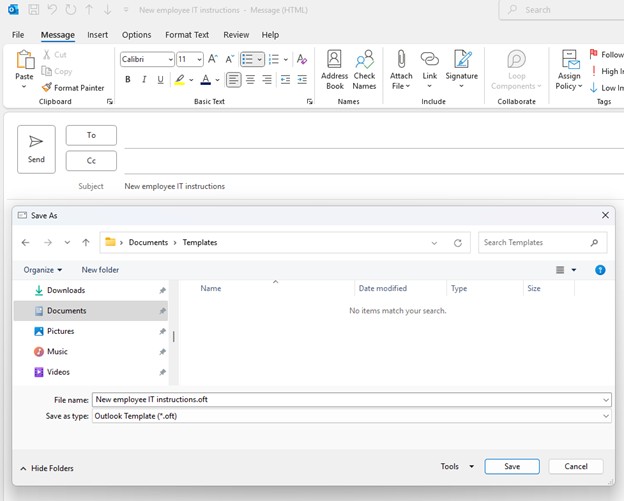
To create a template, run Outlook and create a New Email. Fill out the Subject and Body of the email and save it as an Outlook Template. Do not add your signature to the bottom as it will get added when you use the template. Click File -> Save As, give it a name and change the ‘Save as type’ to Outlook Template (*.oft). Remember where you save it.
Next, customize the Quick Access Toolbar so you have easy access to your templates. In Outlook, click the dropdown next to the Quick Access Toolbar, Click ‘More Commands’.

Change ‘Choose commands from:’ to ‘All commands’, scroll down to ‘Choose Form’, highlight it, and click ‘Add>>’, then click OK.

When you need to send one of these templates, click the Choose form icon in the Quick Access Toolbar, click Browse, then find the folder where you saved the .oft file. Double-click the form to open it. After you’ve browsed once to the location, it will show up in the ‘Look in:’ dropdown, so you don’t have to browse again.

Lastly, if you want to edit your template, open it as if you were going to use it, make changes, and save it over the existing one as an .oft file.
Alternate method to create and use templates in Outlook 365: In Outlook, create a new email or reply to an existing one. Click ‘All Apps’ in the ribbon, click ‘My Templates’, click ‘+ Template’, give it a title and body, then click Save. To use it, follow the same instructions, then double-click your new template rather than clicking ‘+ Template’. Drawbacks to this alternative method include the inability to format text and insert pictures in the template.


 notacomputergeek
Leave a comment