Here is a summary of what to expect when choosing these three options (Registered, Azure AD joined, and Hybrid Azure AD joined) when connecting a Windows-based computer to Azure AD.
Connecting
In Windows 11, go to Settings -> Accounts -> Access work or school -> Connect
NOTE: If the computer is already joined to a local (on-prem) Active Directory domain, you will not see the ‘Alternate actions’ links at the bottom – even if you sign-in with a local administrator account. Go to Option 3.
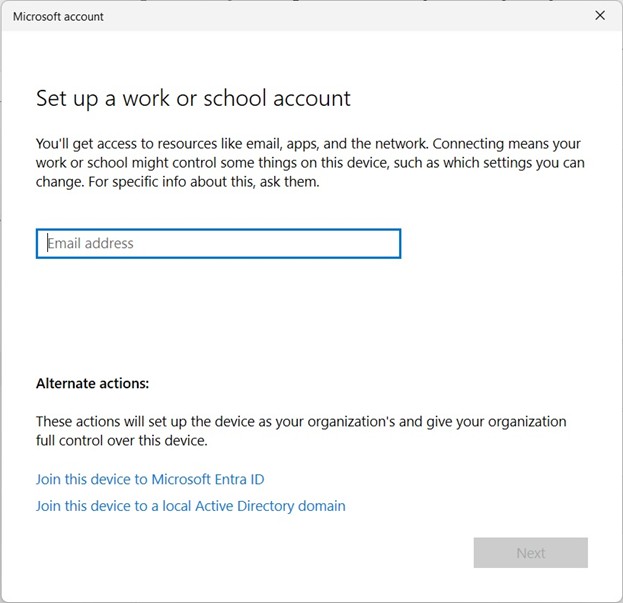
Option 1: Enter email and authenticate without clicking either of the ‘Alternate actions’ links. The computer ‘Join type’ will show in the Entra Admin portal as Microsoft Entra Registered and shows up in the Intune Admin portal with Personal Ownership.
Option 2: Join this device to Microsoft Entra ID – Enter email and authenticate. You will also be prompted to verify your domain – click Join. The computer shows in Entra as Microsoft Entra Azure AD joined and shows up in Intune with Corporate Ownership.

Option 3: Join this device to a local Active Directory domain – This option does nothing with Azure unless you are using Azure AD Connect and sync the Organizational Unit (OU) that contains the computer. Only then will it show in Entra as Hybrid Azure AD joined. You also have the option of adding the type of user – Standard or Administrator.
The computer will only show up in Intune when these three things are done: 1) belongs to an OU that is syncing in Azure AD Connect, 2) create a Group Policy Object (GPO) on your on-prem server and link it to the syncing computer OU, 3) the end user signs into their Microsoft 365 account. The only setting in the GPO is to Enable ‘Computer Configuration > Policies > Administrative Templates > Windows Components > MDM > Enable automatic MDM enrollment using default Azure AD credentials.’
Important Note: You can use the built-in ‘Computers’ container to sync your computers to Azure AD Devices, but they will not automatically be added to Intune. The problem arises because you cannot link the GPO needed to a container (Computers). It must link to an OU, which you will have to create, move the computer into the new OU, then add the OU to sync in Azure AD Connect. Once you’ve done this, you may want to change the default location of the newly joined computer to the domain. Open an elevated PowerShell window and execute the following command: redircmp OU=DesiredOUName,DC=domain,DC=com. Obviously, change the parameters to your domain info.
Disabled computers in the synced OU will show up in Azure Entra AD as Microsoft Entra Registered – same as Option 1. These computers will not show up in Intune.
Once any of the three options are complete, the ‘Alternate actions’ will disappear if you try to connect another account – even if you sign into another profile on the same computer or try to use a different tenant account. If you try to add an email address as another account, you will get an error message stating that the device is already connected.
Disconnecting
Settings -> Accounts -> Access work or school -> Disconnect – after completing Option 1 or Option 2, the computer will automatically be removed from Entra and Intune. It may take several minutes to be removed from Intune.
In my test, when I unjoined a computer from the on-prem domain, it was disabled in my local AD, which caused it to change to a ‘Pending’ status in Azure AD. The status never changed over several days no matter what I tried. I even tried dsregcmd /leave on the device, and nothing changed. I don’t think this is how it’s supposed to work, but I was able to delete the disabled computer in the on-prem AD, which deleted it from Azure AD. I then had to manually delete it from Intune.

 notacomputergeek
Leave a comment