Are your users having any of these symptoms?
- Account is sending spam emails and the “From” address is legit (not spoofed)
- User is no longer receiving any new email. Even if they are using Outlook and the program says it’s “Connected”
- User notices Outlook or OWA (Outlook Web Access) Inbox rules that were not created by user
- Microsoft 365 Admin notices the user’s mailbox is blocked from sending email. Check Restricted Users

- Items appear in the Sent Items or Deleted Items folder that the user did not put there
- Microsoft 365 Admin notices successful sign-ins from geographic areas the user did not visit. This can be a false positive, specifically for cellular connected devices
Primary Causes
- User clicks a malicious email link
- User enters login credentials into a “look-alike” dialog box (usually done after clicking a malicious email link)
- Uses does not sign out after using a public device thereby giving the next person full access to their account
- Malicious person purchased username/password from a previous data breach and the account does not use Multi Factor Authentication (MFA)
Microsoft 365 Admin Response
Verify
Contact user (not by email) to discuss possibilities of how it happened
Log into Microsoft 365 Identity Admin portal (entra.microsoft.com):
- Check user’s MFA authentication methods: Go to Users | All users, then click on the user’s name. Click Authentication methods. Verify with the user that security information is correct. The bad people may have changed it. If so, remove them.

- Check user’s Sign-in logs: Go to Users | All users, then click on the user’s name. Click Sign-in logs. Look for any successful (apply Status filter of “Success”) sign-ins outside the user’s normal login location. Look in both the Interactive and Non-interactive tabs. Verify location by putting IP address in a site like ip2location.com that can also do IPv6 geolocations. Here, the Location column shows sign-ins within a short amount of time that could not be physically done.

- Check user’s security apps added: Go to Users | All users, then click on the user’s name. Click Applications. It’s unlikely a user would have any applications listed, so look for any malicious apps.
Log into Microsoft 365 Exchange Admin portal (admin.exchange.microsoft.com):
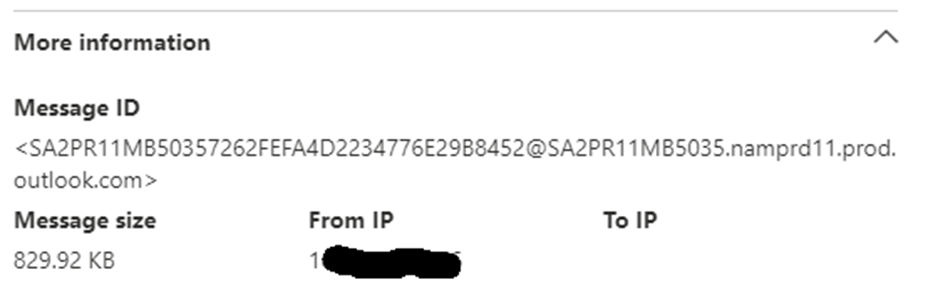
- (If the account is sending spam) Check origination location of spam email: Click Mail Flow | Message Trace | Custom queries. Click Start a trace. Enter the user’s email address as sender, change the Time range to when the spam email was sent, click search. Once you find the spam email, click its link and expand More information. Enter the From IP address into your favorite whois by IP website and this will identify the location of the sender’s email address.
Mitigate
Block sign-in for that user or
Log into admin.microsoft.com with admin account credentials
Click Active users
Click the Reset password icon and change users’ Microsoft 365 password
Click user’s name
Click Sign out of all sessions
Click Identity Admin Center
Click Users
Click All users
Click the user’s name
Click Authentication methods
Click Revoke multifactor authentication sessions
(Option) Click Require re-register multifactor authentication
Click Applications and remove any malicious apps added
Have user login to their Microsoft 365 account at www.office.com. Click Outlook, click Settings, click Rules and remove any rules that the user did not create.
Caution the user to never use the compromised password ever again.
Remind the user that the bad guys have your MFA info now.
Admin should document incident (do you have an Incident Response Form?) and send document(s) to their supervisor.
Report and suspicious URLs or IP addresses to SPAMHAUS Project.
Important: Your area may have mandatory breach requirements. If you suspect Personally Identifiable Information (PII) or Protected Personal Information (PPI) was compromised, you should have a separate process which may include contacting your cybersecurity insurance carrier, a forensics team, and the media.
Train users what they can do
- Go offline – turn off computer, unplug ethernet cord, or turn off WiFi
- Report any email phishing attempts
- Change account passwords that used the same credentials
- Monitor account and computer behavior
- Learn and adapt

 notacomputergeek
Leave a comment